Table of Contents
Minig : The Giocoso Mini Player
1.0 Introduction
Starting with Giocoso Version 3.6, Giocoso ships with the ability to run in “minimal mode”: a stripped-down Play Music menu that allows you to initiate randomised playback from an interface that is width-constricted, such as a mobile telephone:
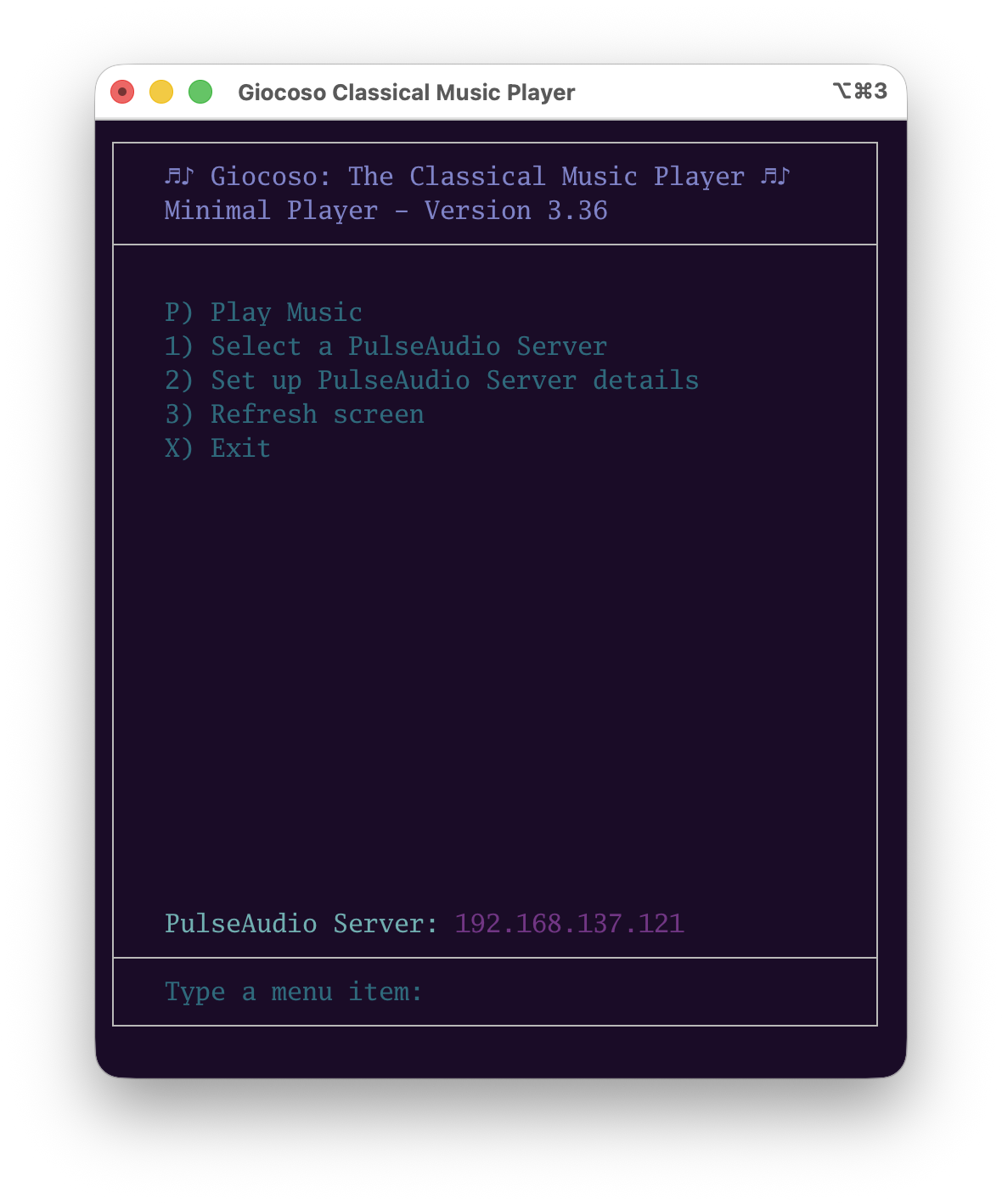
Taking the 'Play Music' menu option on this screen is exactly equivalent to taking Option 1 on the standard Play Music menu in full-blown Giocoso: you get the 'default' music selection that results from applying parameters specified in your persistent configuration, excludes and exempts files, randomly-ordered.
This mini-mode Giocoso is invoked by typing the command:
minig
…at the command line. The intent is that you might do this whilst connected to a music-playing PC over ssh, on your mobile (cell) phone. You thereby acquire the ability to start and control playback of music, remotely.
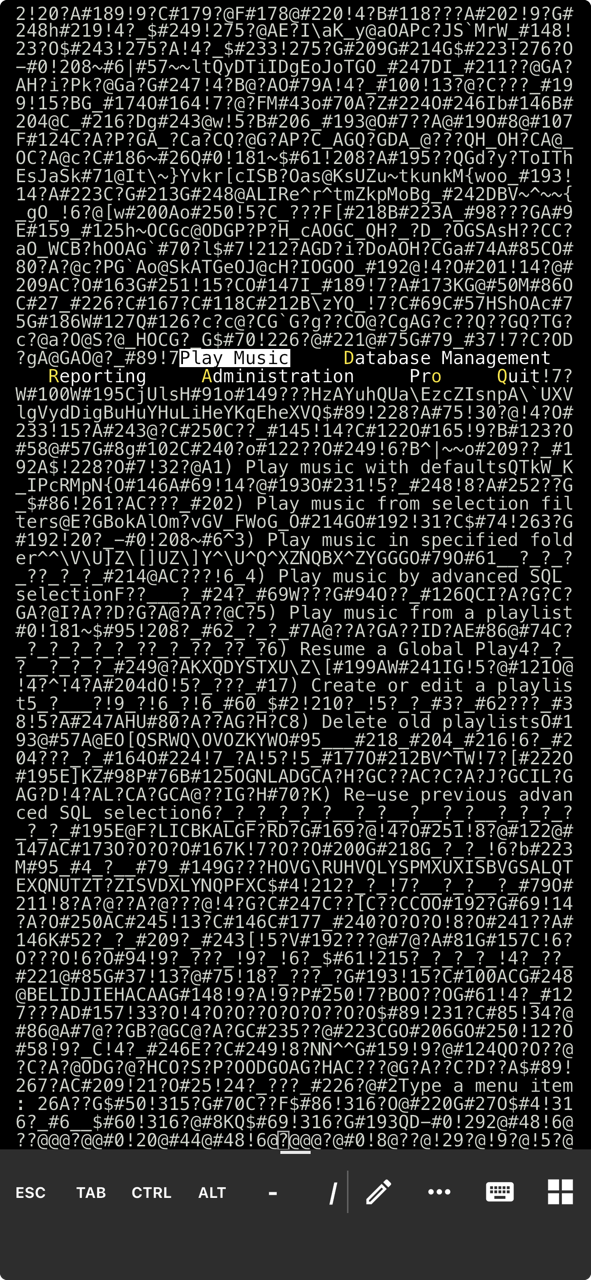
With this scenario in mind, the mini player deliberately avoids displaying any form of album art or other in-terminal graphics since doing so generally results in this kind of garbled display:
The mini player therefore only displays textual data related to the music being played, like this:
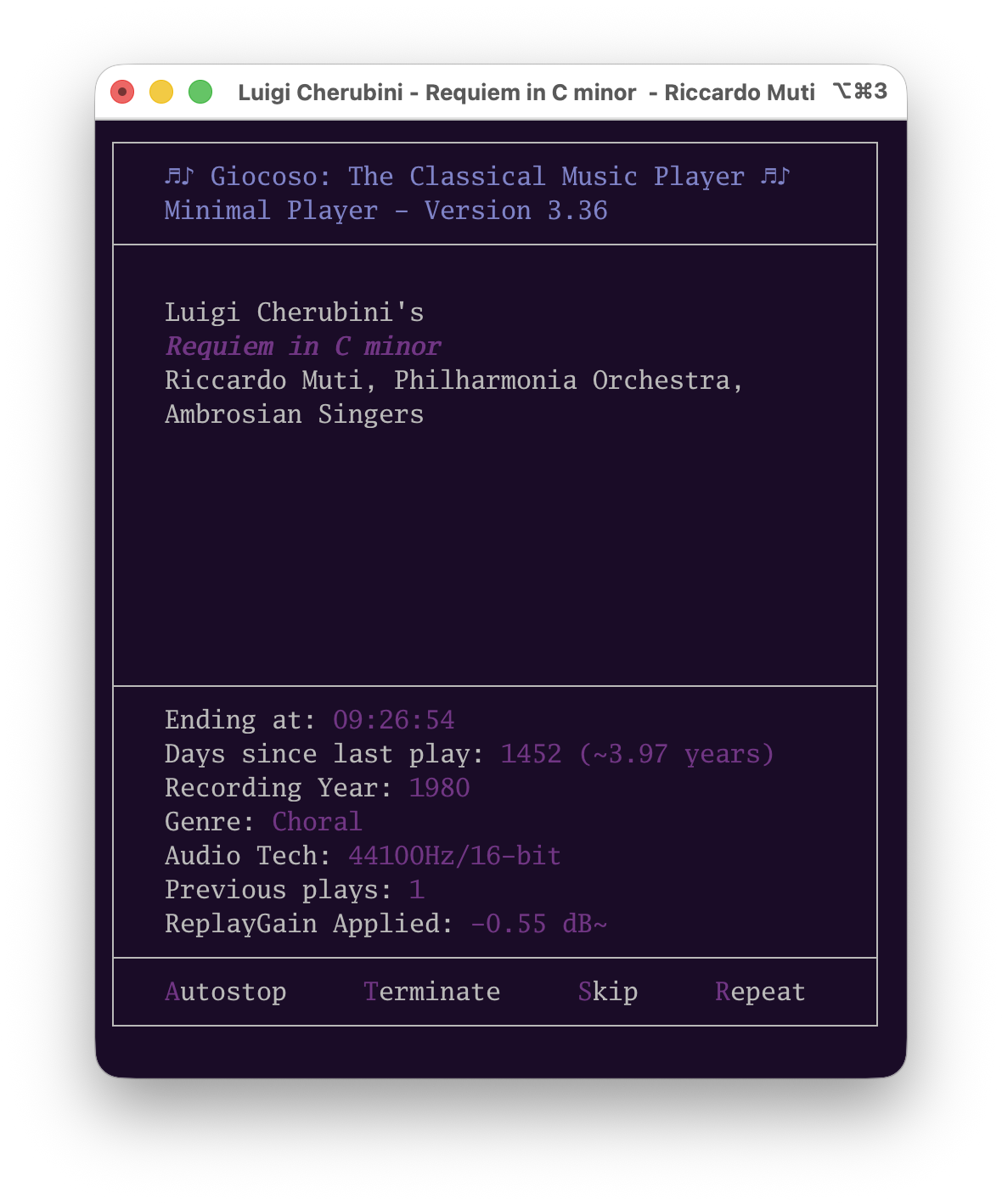
As music plays, the usual sort of 'play control' menu options are available at the bottom of the screen: Autostop (to allow the current play to continue but prevent progress thereafter to any new play); Terminate (to immediately halt the current play and to not progress to any other play, either); Skip (to immediately halt the current play but to progress to the next play, if any are available); and Repeat (to allow the current play to continue to completion and then to begin playing it again from the start). Play controls you would see when the full-fat Giocoso plays music (such as Pause, Volume and Notes) are not available in mini-mode.
Note that the mini player doesn't just initiate music playback: if you have already begun playing music in full-fat Giocoso on server X, then connecting to server X and running minig will show you what music is already playing:
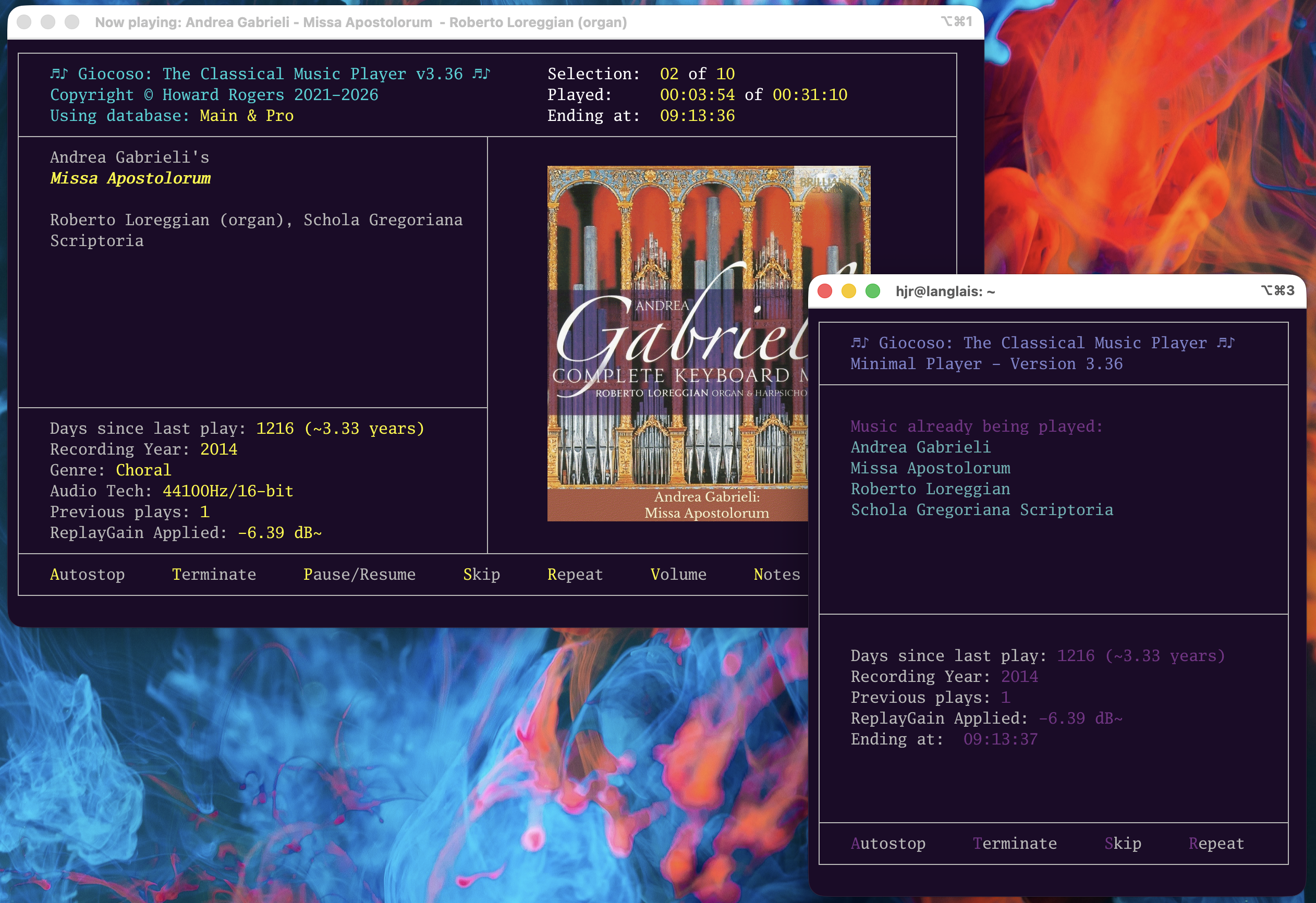
Here, for example, you see that some Gabrieli is playing in full-fat Giocoso on the left; the mini player has then been launched on the right: it immediately displays the details of what is already being played, rather than giving you the option to initiate music playback. The mini player's music play controls still function, however: if you press Autostop in the mini player, the Autostop option in the main player will light up, for example.
The only thing to really note about the mini player in this 'control mode' (as opposed to it being the playback initiator) is that the play controls are not persistent or interactive: if you tap 'Repeat', for example, the mini player's 'Repeat' option will not stay highlighted, though the one in the main player will. In similar fashion, if the main player stops playing one piece of music and starts playing a new piece, the mini player's display will not update to reflect this: it will continue to display the details of the original recording only: you would need to tap 'x' to quit the mini player and re-launch it to see the details of the new recording being played.
Another feature of this 'control mode' functionality: if you take the mini player's “Skip” option, you'll trigger the main player to terminate the current music playback and start the configured countdown before play of a new recording begins. That causes the mini player to return to the main menu (since there is no music playing whose details it can display). It will remain at this main menu, even though the main player moves on to playing something new: again, the point is that in control mode, the mini player is not interactive with the main player. That's why the mini player has an Option 3: Refresh screen menu item. Tap '3', and the mini player's display will update to display the details of the new recording that the main player has begun to play.
2.0 Pulse Audio Configuration
Remember the situation the mini- layer was invented for: initiating or controlling music playback from a Giocoso-enabled computing device via a handheld device. In that context, where control is separate from the thing doing the actual playing, it makes sense that the controller should be able to direct the player to send its music to wherever the controller wants it to, rather than to the device on which the player is actually running.
Imagine this scenario: you have a music-playing PC in a dedicated listening room, attached to a good DAC, amplifier and speakers. Today, however, you want to sit out in your garden and thus require music to sound out from the garden shed (it happens!). The garden shed is equipped with an ancient PC that can barely run anything usefully… but it happens to be connected to an amplifier and speakers. In this case, therefore, you want the listening room PC to send its audio signal not to the DAC, amplifier and speakers to which it is directly connected but over the network, to the garden shed PC: it is playing in the listening room, but it is sounding in the shed!
This is functionality that comes with a technology called PulseAudio (and its newer, backward-compatible equivalents, such as PipeWire). Giocoso has always been “PulseAudio capable”, but the mini player extends this capability to making it trivially easy to select any of multiple 'audio sinks' to which music playback can be directed. (An “audio sink” in this context is simply a fancy way of referring to “the device that does the sounding of music, even if it's not doing the playing”)
2.1 Setting up PulseAudio Server Details
The Giocoso mini player comes with Option 2 : Set up PulseAudio Server details which, when taken, reveals this sort of screen:
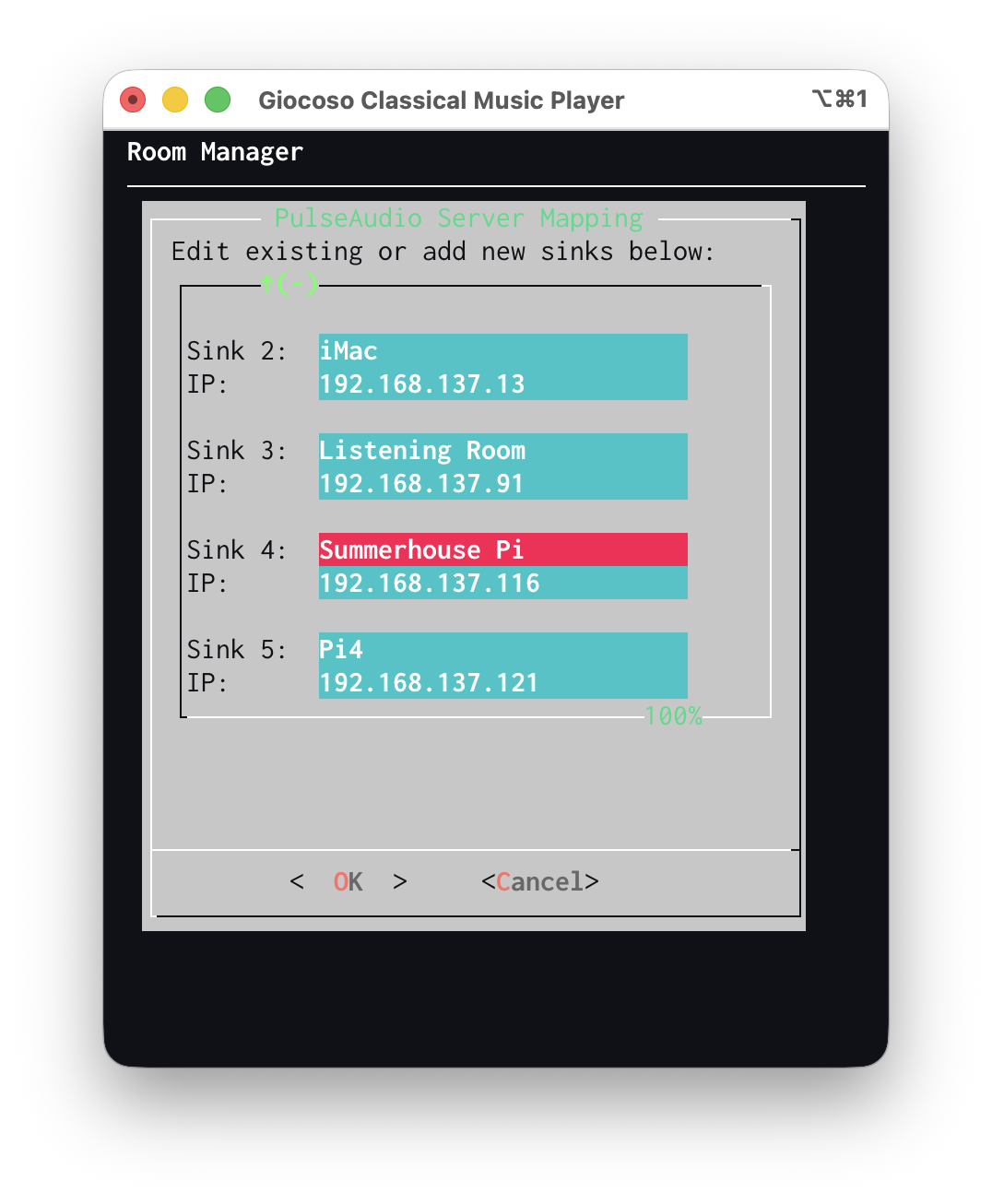
The screen allows five pairs of “Sink Name” and “Associated IP Address” to be entered: the name can be anything you like but will be truncated to 14 characters long upon saving. The IP addresses have to be valid IP addresses to be meaningful! When submitted, these entries are written to a table in the local Giocoso database, called PULSESINKS, with columns identifier (the textual data) and ipaddress (the associated IP address).
You don't have to fill in all five available sinks: I've shown five for explanatory purposes but in fact only ever direct my music to either the bedroom or the summerhouse, so in reality, I'd only ever fill in two sinks.
Note, however, that if the mini player is going to be run on a one of the PCs that you also listen to music on directly then it should be entered as its own possible sink. In other words, I also listen to music in the listening room: if this mini player is running on the listening room PC, I'll need the ability for the listening room PC not only to direct audio to the bedroom or summerhouse but also to itself… otherwise, I won't be listening to much in the listening room in future!
2.2 Selecting a PulseAudio Server
Once you've created a set of PulseAudio sinks and their associated IP addresses, you can select one of them using the mini player's Option 1: Select a PulseAudio Server menu item:
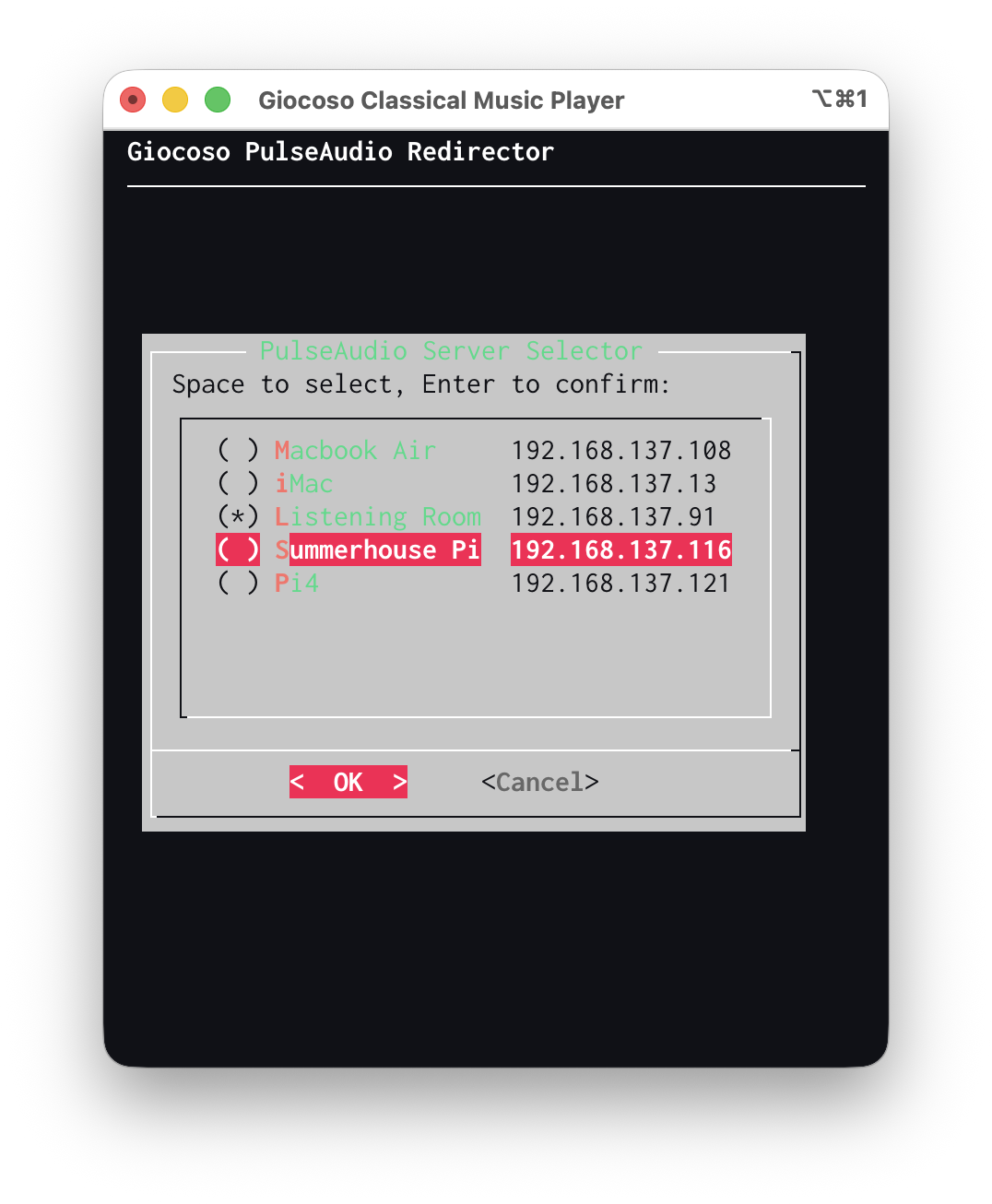
On this screen, all configured sinks will appear with a set of empty brackets next to them. One of the sets of brackets will have an asterisk in them: that is the currently configured PulseAudio Sink (that is, the one mentioned in the full-fat Giocoso's Administration menu, Option 2:
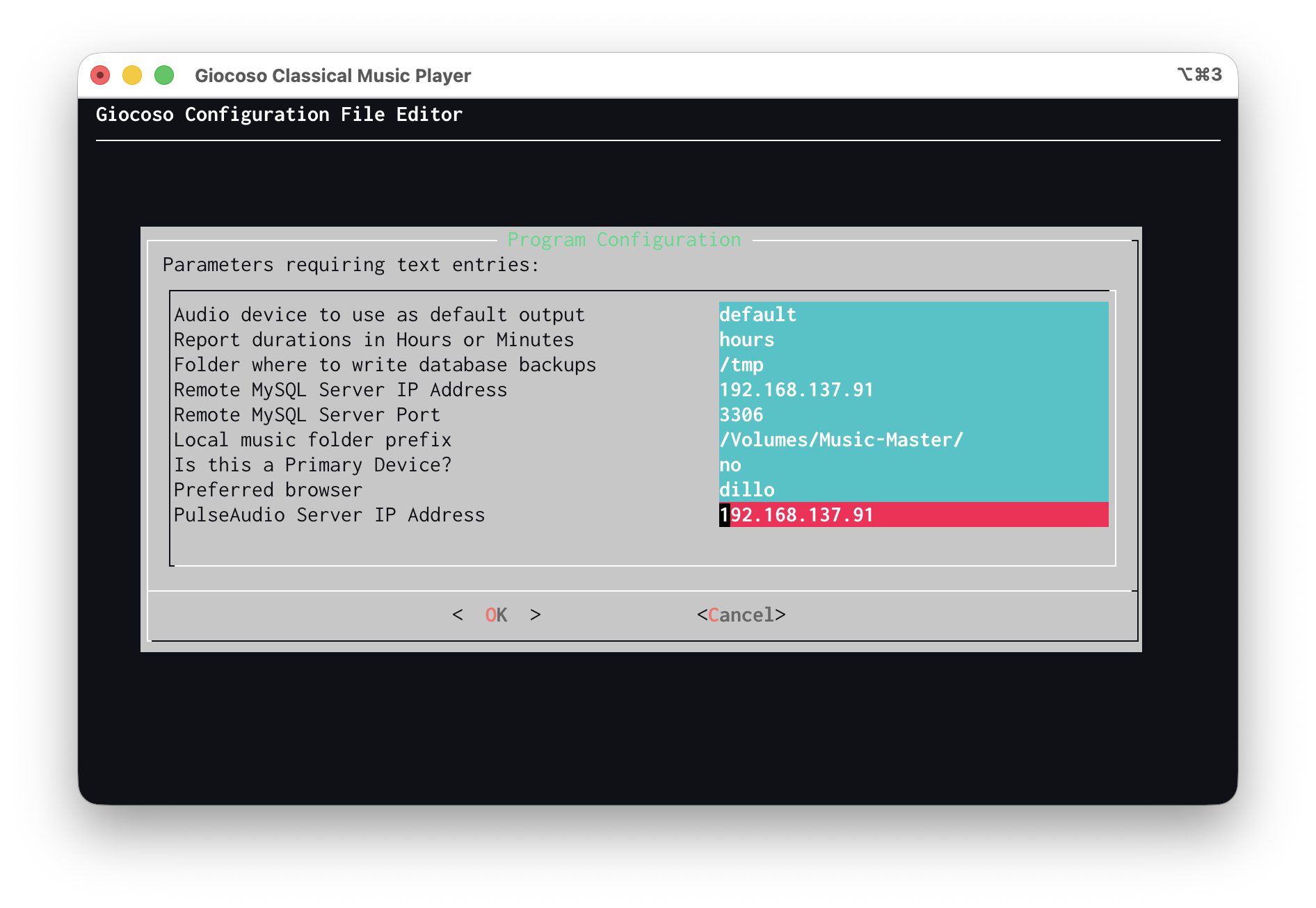
You can see here that I've pre-configured IP address 91 to be my 'default sink' and from the earlier mini player screen, you can see that the .91 address is, indeed, associated with my listening room PC. However: it's a nice sunny day and I want to have music play from the listening room out to my garden: so, on the mini player, I've highlighted the 'Summerhouse Pi' item by up- and down-arrowing to it. Once it's highlighted, press the Space Bar:
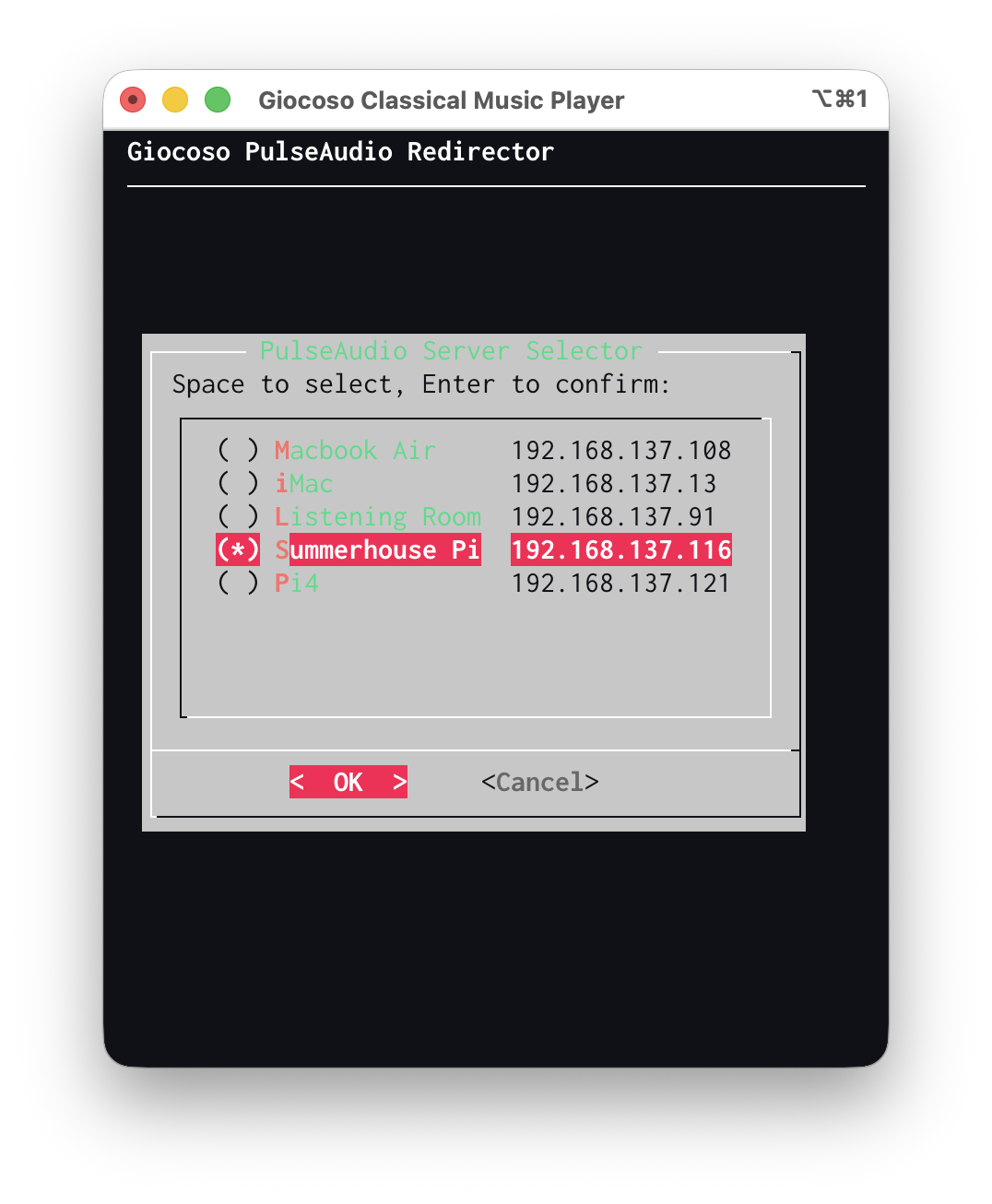
Now the asterisk jumps to the 'Summerhouse Pi' item, indicating that it's been selected. Press [Enter] to confirm. Immediately, the mini player screen will update to show the change in selected sink:
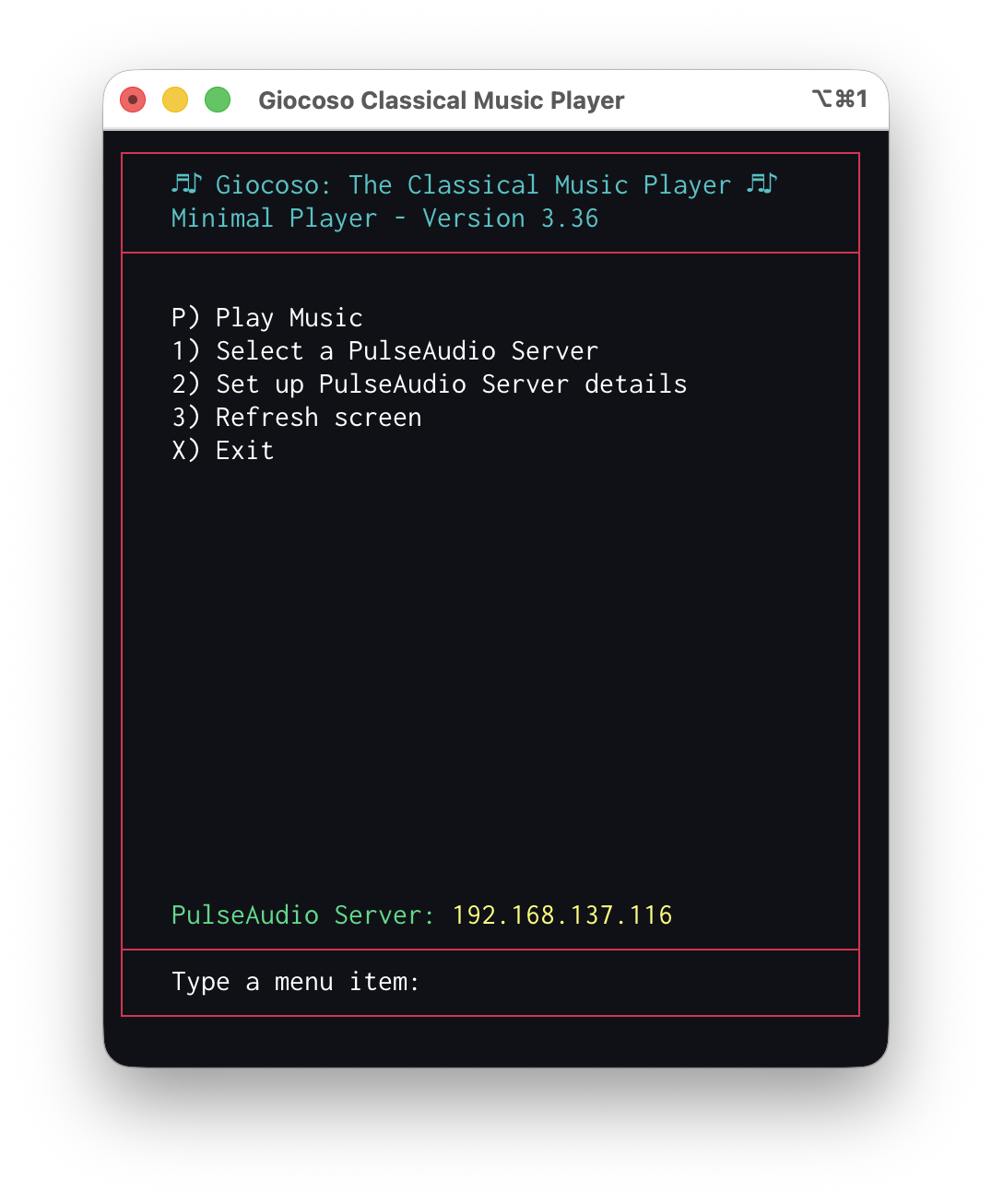
Were you to go into the full-fat Giocoso's administration menu, option 2 once more, you'd see the newly-selected audio sink had also been changed there. The mini player selection changes the main Giocoso's persistent configuration file settings, therefore.
All this now means that if you were to initiate play from either the mini player (by tapping the 'P' key) or from the main Giocoso play menu, the resulting audio stream would “sound out” on the .116 computer: and the birds and I would be happy!
There is just one catch before the pigeons and I can be truly satisfied in the sun: it isn't enough only to select a PulseAudio sink to play to. You also must tell the main Giocoso's configuration file that it must use PulseAudio to distribute its audio via PulseAudio in the first place. That's done with another of the persistent configuration file settings:
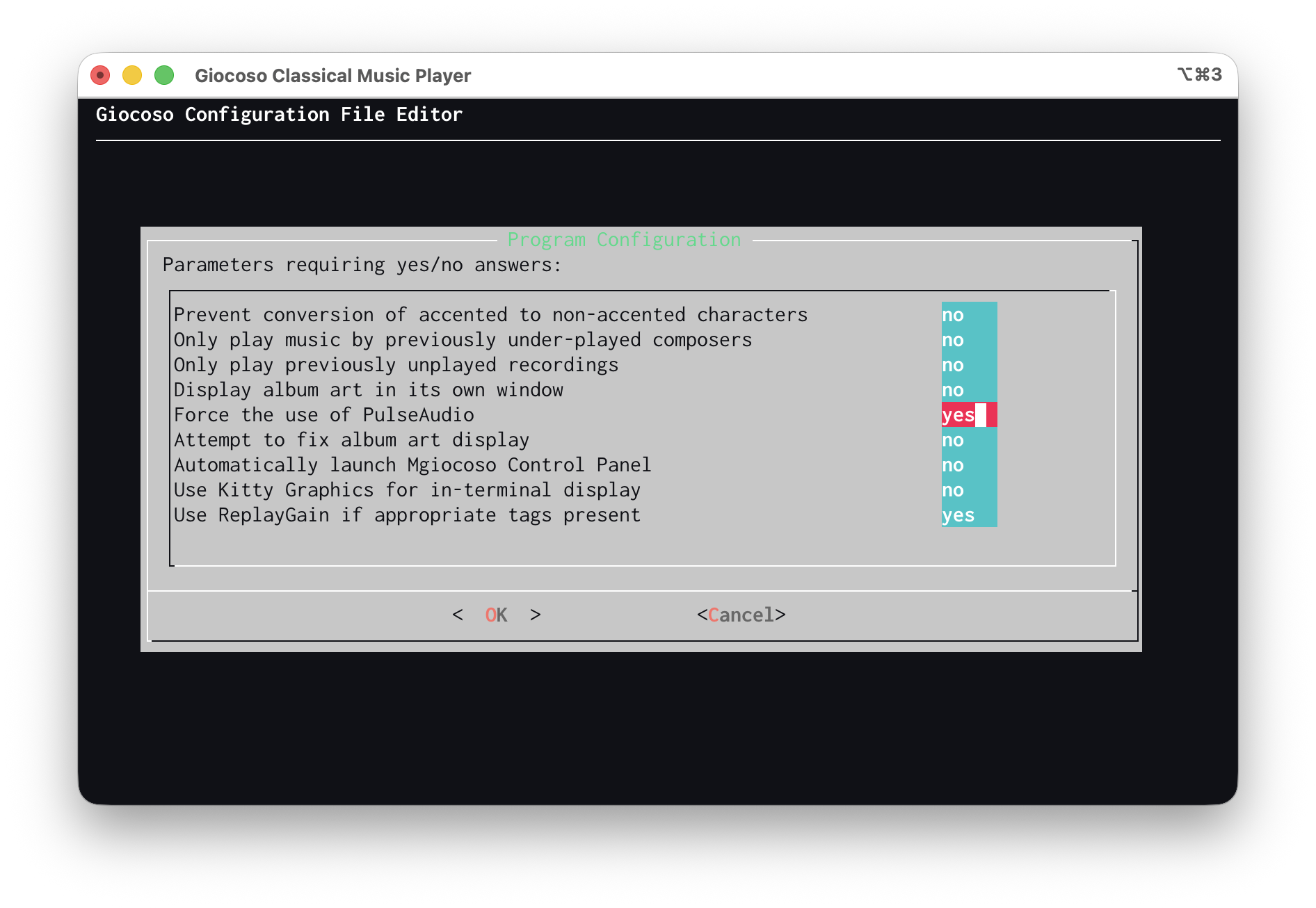
Here, the “Force the use of PulseAudio” configuration item has been set to yes (it defaults to a 'no' value). Only when this says 'yes' and a PulseAudio server's IP address has been configured using either the main Giocoso program or the mini player will music be played on one PC and sounded out on another.
3.0 Conclusion
The mini player is not all to do with PulseAudio: it's there as a remote control for 'proper' Giocoso, allowing you to repeat, skip, terminate and autostop plays already begun with the main player, but via an ssh session and a mobile phone. In this mode of operation, the mini player takes over most of the functionality of mgiocoso.
In addition to controlling existing plays, however, the mini player can do something mgiocoso never could: initiate default, randomised plays by itself.
Only in a third, subsidiary mode of operation can the mini player be used to setup a group of PulseAudio 'sinks' and then direct plays of music that it initiates to one of them, over the network, provided you've already configured PulseAudio on all appropriate computing devices. Doing that necessary configuration of PulseAudio servers can actually get quite tricky and is beyond the scope of this particular piece of documentation, though additional documentation helping you achieve it is in preparation.
| Back to Software Home | Back to Giocoso Documentation Home |