Table of Contents
The Persistent Configuration File
1.0 Introduction
Semplice's behaviour is controlled by the various settings found in its persistent configuration file, which is a text file called $HOME/.local/share/semplice2/txt/semplice.conf. Since it is a text file, it can be edited directly in any text editor you happen to favour. However, it consists of a set of keyword=value parameters whose meaning and legal values may not be obvious to you, so whenever you want to alter its contents, it's much better to use Semplice's own specific menu option to do so: the Miscellaneous menu, Option 1 : Edit Configuration File. Taking that option will bring up screens like this one:
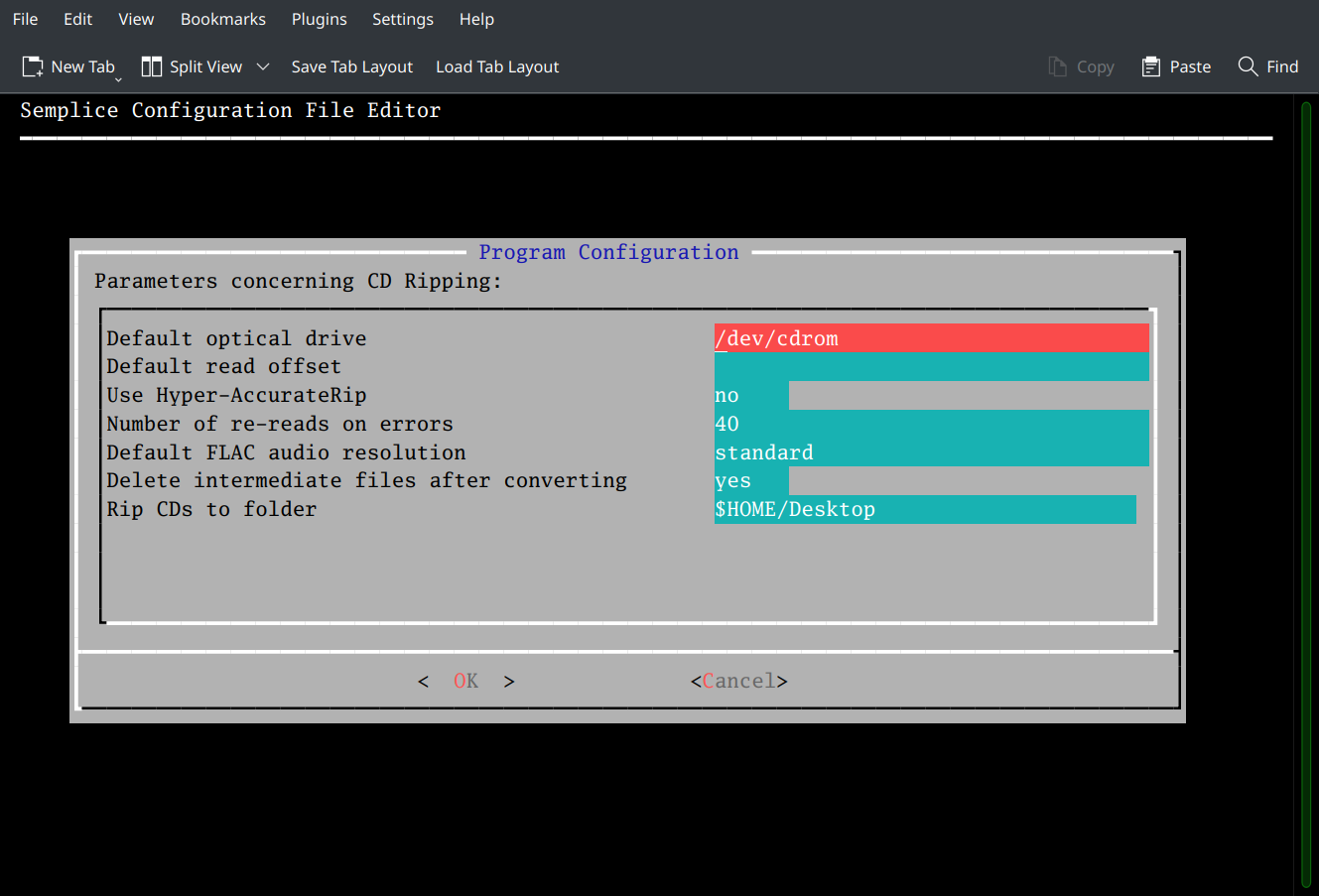
…in which textual prompts are paired with data entry fields. The text prompts use natural language wherever possible and the values you assign to them are also in natural language (for example, yes or no answers, rather than binary 1 or 0 values).
There are four such screens to work with, each one relating to a specific aspect of Semplice's behaviour. The one you see above controls everything about how Semplice rips music from audio CDs: what is the CD drive designator, where should ripped files be stored on hard disk, should CDs be ripped to standard or high-resolution FLACs, and so on. The specific consequence of setting or unsetting any of these parameters should be determined by reading the relevant section of the User Manual: for CD ripping, for example, you'd want to consult this page of the manual.
The second page of the configuration file wizard deals with all the ways in which Semplice embeds metadata tags within FLAC files (so see this user manual page and its child pages for the details of what those options mean). The other two pages of configuration options deal with SuperFLAC and Audio Processing options.
Note that once you start editing the configuration file this way, you must complete the <em>entire</em> wizard. If you quit half-way through by selecting the 'Cancel' option, the parameters which are reached after the screen you cancelled on are all set to their default values, which may not be what you want. Always step through all four pages of the wizard therefore: if you don't want to alter any parameters, just press [Enter] to skip through with the currently-set values persisting.
Generally, the default values for most parameters should be acceptable and safe out-of-the-box (though things like where to rip audio files to will, of course, be highly susceptible to a user's unique requirements). For example, the 'default FLAC audio resolution' option you see in the above screenshot will default to 'standard', though values of standard, high and extreme are all valid. If you attempt to set a parameter to an illegal value (for example, setting 'default FLAC audio resolution' to the string 'anything you like'), the default value will be applied instead. Occasionally, setting a value for a parameter will cause changes to be made to your PC, though this is very rare: for example, if you set 'Rip CDs to folder' to a path/folder combo which doesn't exist but which could be created, then the path/folder combo will actually be created for you.
2.0 Parameters, Default Values and Effects
The following table lists all persistent configuration parameter names in both their 'plain English' forms and the form in which they are stored within the configuration file. It shows the default value where one applies and briefly describes the effect the parameter has on the way Semplice works.
| Type of Parameter | Parameter Friendly Name | Parameter Technical Name | Default Value | Legal Values | Effect on Program |
|---|---|---|---|---|---|
| CD Ripping | Default optical drive | OPTICAL_DEVICE | /dev/cdrom | Any valid device identifier for an optical disk | Identifies the CD drive used to perform CD rips by default. |
| Default read offset | OPTICAL_OFFSET | null or blank | Any numeric value, with minus sign prefix is needed | Adjusts the position of the starting block to read the CD from, to account for manufacturing variability. Leave blank to trigger automatic offset detection. | |
| Use Hyper-Accurate Rip | HYPER_ACCURATERIP | no | yes/no | Adjust for AccurateRip's inaccuracy.Adjust for AccurateRip's inaccuracy. | |
| Number of re-reads on errors | READ_RETRIES | 40 | Any numeric value | How many times to try re-reading a CD sector if reading it errors out for some reason. Higher values make rips of scratched CDs slower but more likely to complete. | |
| Default FLAC audio resolution | FLAC_QUALITY | standard | standard, high, extreme | Whether the FLACs produced by a CD rip should be standard CD audio resolution or higher. | |
| Delete intermediate files after converting | DELETE_WAV | yes | yes/no | CDs are first ripped to WAVs and the WAVs are then converted to FLACs: this controls whether the WAVs are automatically deleted once the FLACs have been produced. | |
| Rip CDs to folder | RIP_FOLDER | $HOME/Music | Any valid physical path with read/write access | A valid path where you have write access where CD rips will be stored on disk | |
| FLAC Tagging Parameters | Delete album art after embedding | DELETE_ART | yes | yes/no | If a JPG or PNG is found in the folder when tagging FLACs, should it be automatically deleted after first being embedded within the FLACs. |
| Prevent conversion of accented to non-accented characters | ACCENTS | no | yes/no | If you type é or ü (or other accented characters), sometimes those may be converted to plain, unaccented equivalents such as e or u. Set this to 'yes' to stop that happening. It shouldn't happen anyway in most properly-configured Linux environments. | |
| Force filenames to display bitdepth/sample rate | NAMEBITS | no | yes/no | If yes, then a file called “01 - Adagio.flac” will be saved as “01 - Adagio-16-44100.flac”, with the 16 and 44100 indicating the bit-depth and sampling rate of the audio signal. Set to no, those bits of data are *not* incorporated into the physical file name. | |
| Display album art when extracting | DISPLAYONEXTRACT | yes | yes/no | If you ask to extract embedded album art from a FLAC, should the program simply extract it and save it to disk, or should it also display it on-screen? | |
| Default text editor | EDITOR | nano | Any valid text editor executable name in $PATH | When editing cuesheets and similar files, which text editor should be used? | |
| Use Custom Tags | CUSTOMTAGS | no | yes/no | Do you wish to specify up to nine custom tags for FLACs? The answer should ideally be no, but if this is set to 'yes', a further nine prompts for the names of the custom tags you want to use will appear in the configuration file editing wizard. | |
| SuperFLAC Management Parameters | Auto-delete per-track FLACs after SuperFLAC creation | AUTODELETE_PERTRACK_FLACS | no | yes/no | When creating a SuperFLAC by merging a bunch of individual FLACs, should the individual files be deleted automatically once the merge has completed, thus leaving behind only the SuperFLAC? |
| Audio Processing Parameters | Lossy codec quality setting | AUDIO_QUALITY | 4 | Numeric values 1 to 9 | When converting a FLAC to a lossy audio codec, which quality should be used for the lossy files? A value of '4' is 'average' for all lossy codecs. A value of 1 is great quality for MP3s but lousy quality for OGG or WMA; likewise 9 is rubbish for MP3s, but superb quality for OGGs and WMAs. |
| Delete source files after codec conversion | AUDIOIN_DELETION | no | yes/no | If you convert an APE to a FLAC, or an MP3 to an OGG, should the source APE or MP3 files be automatically deleted at the end of the conversion process? | |
| Apply audio boost automatically if appropriate | AUTOBOOST | no | yes/no | If you take the boost volume menu option, should volume analysing and boosting begin immediately, or should the program analyse whether a boost could be applied and then prompt you whether you'd actually like to go ahead and apply it? | |
| Apply real or metadata audio boost? | METAVOL | real | real or metadata | Real volume boosts physically alter the audio signal in a FLAC; metadata ones merely add REPLAYGAIN_* tags to a FLAC and leave the audio signal unchanged | |
| Program Control Parameters | Display embedded artwork at size | ARTSIZE | 380 | Any positive numeric value | Determines the size of album artwork to display once it has been embedded within a FLAC being tagged. The value supplied is converted into a square dimension, so a value of (say) 520 will be treated as a height and width of 520×520 pixels |
| Use Kitty Graphics | USEKITTY | no | yes/no | If set to no, album artwork will be displayed in-terminal using sixel graphics. Some terminals don't support sixel graphics but do support Kitty graphics instead. Set this to 'yes' for such terminals. | |
| Size of the Program Logo | LOGOSIZE | 220 | Any positive numeric value | Determines how big the program logo (the little picture of Beethoven) appears on the right-hand of the screen. The supplied value is used to determine both height and width, so a value of 180 would turn into a square image of 180 x 180 pixels. | |
| Program Logo position (- or +) | LOGOPOS | 0 | Any positive or negative number | Shifts the program logo to the left (with negative numbers) or right (with positive ones), by as many characters as the number supplied. A value of -5 means 'move it five characters to the left'; a value of 8 means 'move it eight characters to the right'. Positive numbers should not use the '+' sign, but negative numbers will need to specify the '-' one. |
Detailed descriptions of most parameters and their effects can be found in the relevant sections of the User Manual.
| Back to Semplice Home Page |