Test Audio Device Configuration
Setting the correct audio device in the Persistent Configuration file can be tricky: the default setting(of 'default') should ordinarily produce sound without a problem, but if you want to direct music playback to a specific audio device, and your PC happens to have multiple HDMI outputs, analogue audio jacks and assorted other devices, it can be quite a task ensuring that Giocoso directs its output to the correct one.
The command aplay -l can help on Linux systems to determine which audio devices exist on a given system. You then fill that in as a 'plughw:x,y' entry in the configuration file (see the Administration menu Option 2, first item on the 'parameters requiring text values' page).
For example:
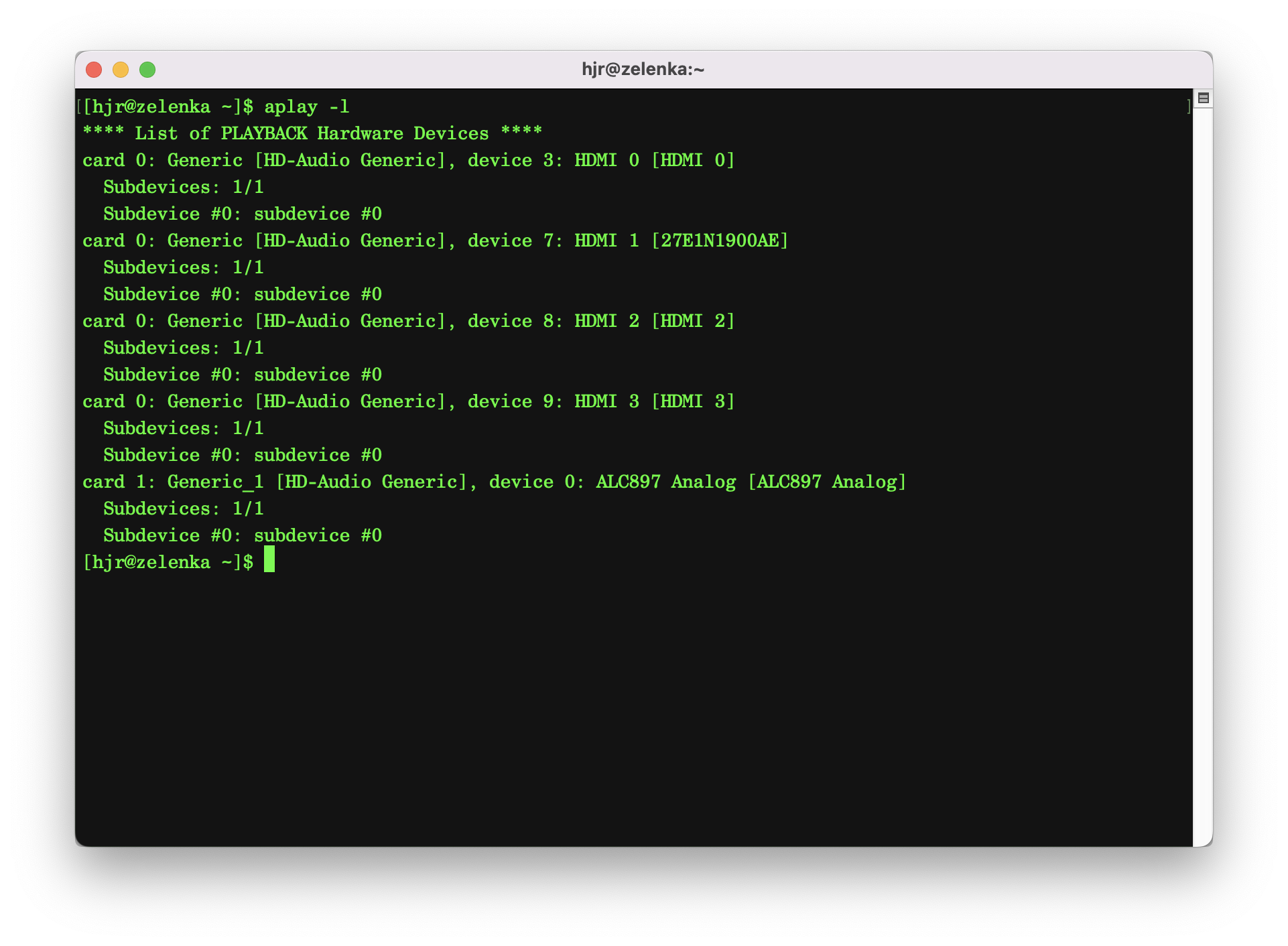
This tells me one of the HDMI ports is probably where I want a digital signal sent: the 3.5mm analogue audio jack is probably not right for high-end music reproduction!
Of course, the question then becomes which hdmi port is the right one to use: I think I can rule out the one mentioning '27EIN1900AE' in its details because that sounds like the 27“ monitor and its speakers are dreadful! So, it's one of the other ones… and without much further help, you'll likely have to try each one in turn and check if audio comes through correctly. This is what the 'Test Audio Device configuration' menu option is for: once you've set an audio device to use in the Administration menu, Option 2, this option will play a short piece of music through that device: if you hear it, you know you picked the right device! If not, it's back to Option 2 to specify the next device, then back to Option 6 to see if you chose wisely. And so on.
Taking the option will display this message:
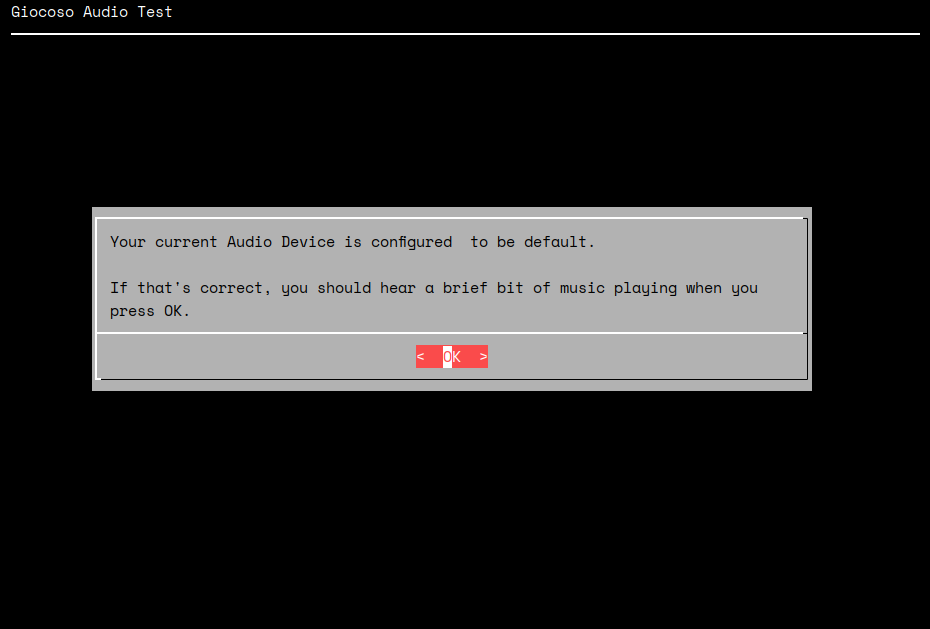
It reminds you of your current audio device setting, and then lets you click OK (or press the [Enter] key) to initiate audio playback of the test audio file. The audio clip only lasts for 8 seconds. At the end of those 8 seconds, you'll see this:
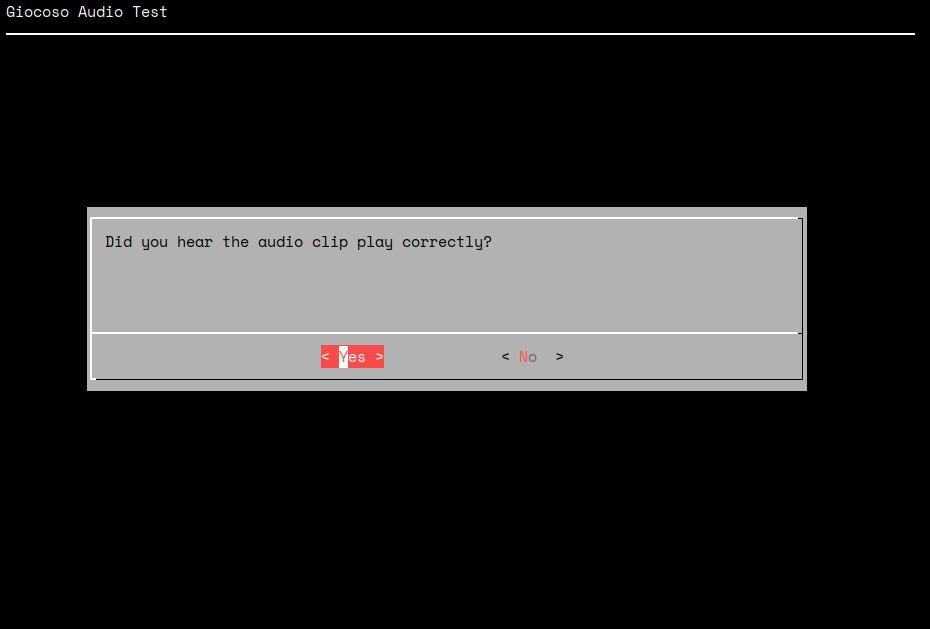
If you heard eight seconds of beautiful plagal cadence (I think!), then just press [Enter] and you'll be returned to the Administration menu. If you didn't, you can select the 'no' option here and you'll be shown the following message:
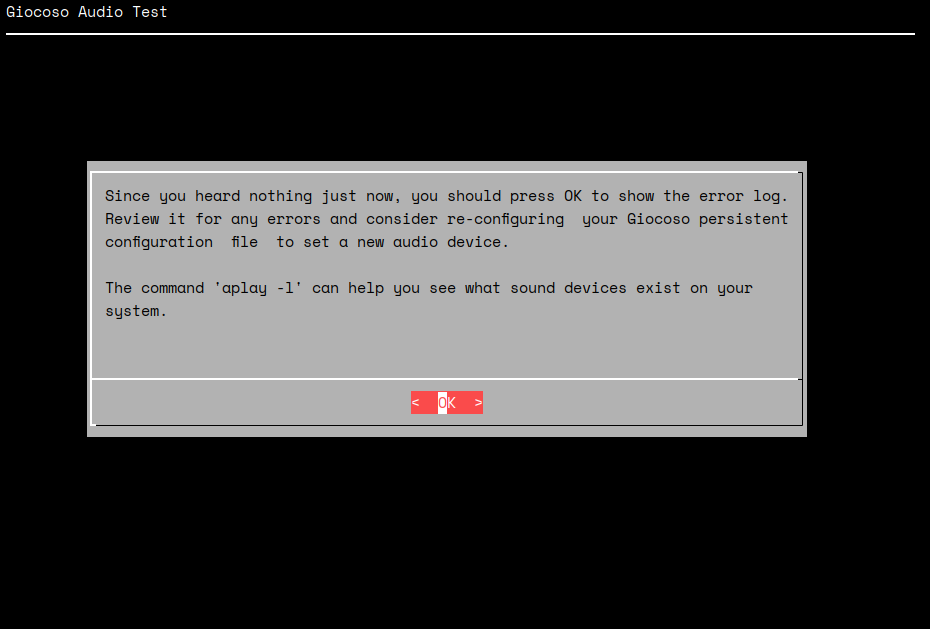
It's not exactly a mine of useful information, I will confess… but it at least reminds you of the command you can use to list audio devices on your Linux-based PC, and what entry in the persistent configuration file is needed to be set correctly. Pressing [Enter] at this point, or clicking on [OK], will then also display the last audio playback log, which may contain some clues as to why audio is not playing properly (but probably won't!):
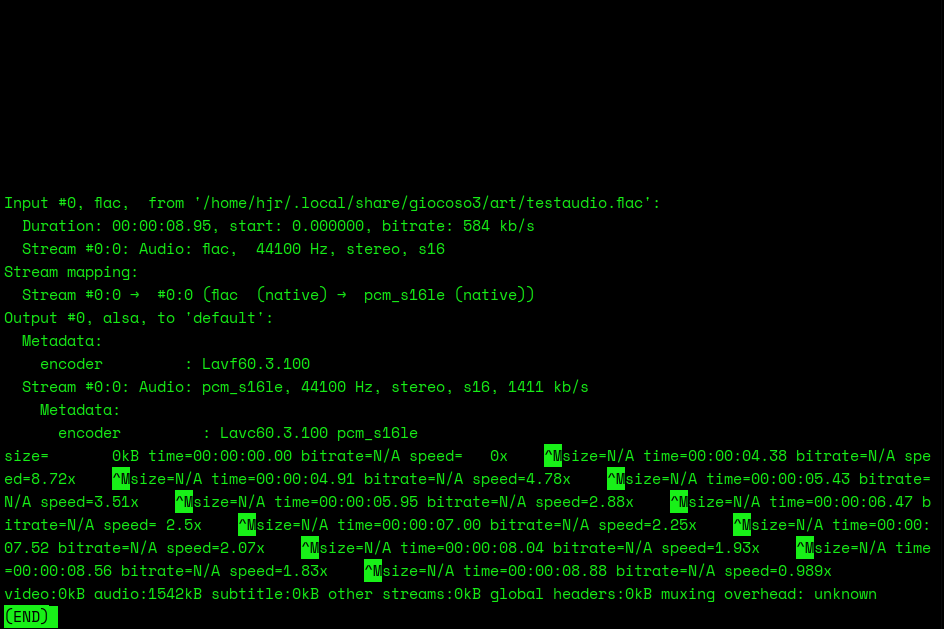
This is raw ffmpeg output, so it's pretty incomprehensible to anyone of mortal woman born, but you might see some plain text in that lot which gives a hint as to what's wrong. I have seen messages indicating that the Pulse Audio Server cannot contact the device, for example, which might indicate a need to reset the Audio Server itself. I've also seen text indicating 'no such device', which indicated on that occasion that I'd typed an extra character when entering the audio device in the Option 2 screen! So, sometimes this is useful: mostly, it's hieroglyphics, I will confess.
Press 'q' to quit the error log and return to the Administration menu when you're ready.
| Back to Software Home | Back to Giocoso Documentation Home | Back to Administration Menu |