This is an old revision of the document!
Visual Appearance Customisations
 Giocoso Version 2 had a veritable plethora of options that could be set in the Persistent Configuration File to control the visual appearance of the program display -the colour of text used, and so on. Most of those options have gone in Giocoso Version 3, at least in a form that is readily settable and re-configurable.
On the other hand, Giocoso Version 3 uses the dialog utility to draw a lot of its visual components, so provided you are prepared to tinker with dialog's own configuration files, you can still tweak Giocoso's visual appearance to dramatic effect.
Here I'll list a few of the simpler colour/visual tweak customisations it's possible to do to knock Giocoso Version 3 into a shape you're happy with.
1.0 Colour Constants
The Persistent Configuration file is generally edited by taking the Administration menu Option 2. However, the file is merely a text file and it contains some parameters which are not exposed or made editable by that particular menu option. For example:
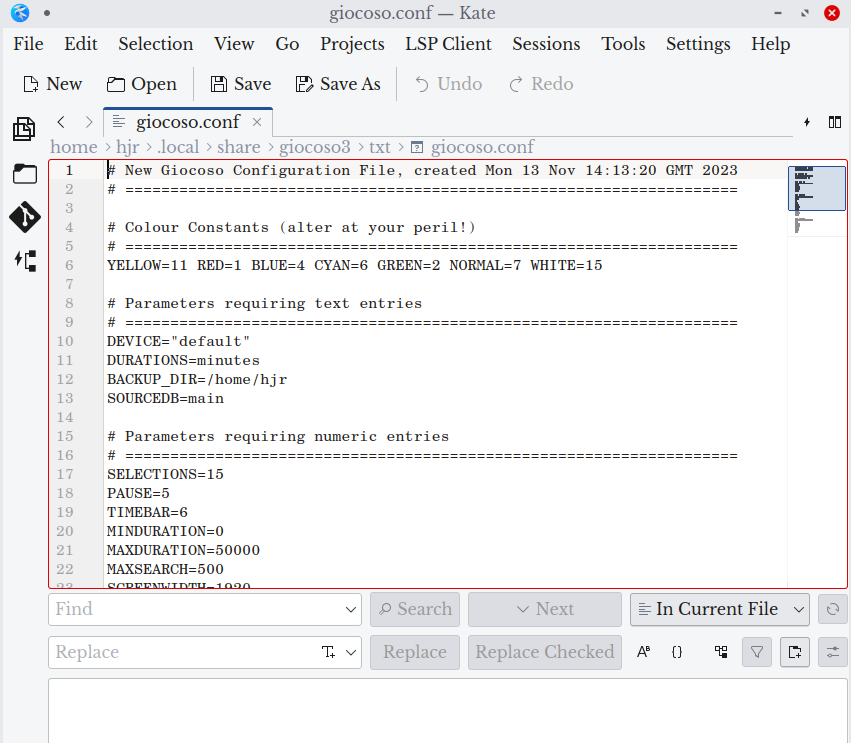
Here I've opened the file in the Kate text editor that is generally standard on KDE-using distros, but I could have opened it in any available text editor. The file is, of course, found in $HOME/.local/share/giocoso3/txt/giocoso.conf. The key parameters to worry about in this context are those appearing on line 6 of the file: the 'colour constants'. The colour names shown here must not be altered, because otherwise Giocoso will break badly. But the numbers assigned to those names can be fiddled with at will: they are the ANSI colour codes and the entire set of them is visible here:
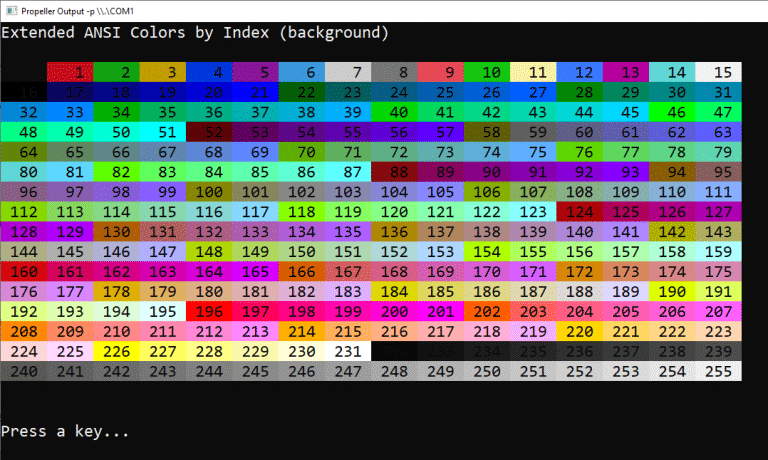
You can see the configuration file says 'RED=1'… and the ANSI color chart confirms that 1 is indeed red. There is nothing, however, to stop you setting RED=9 and achieve a brighter, pinker red… or set it to 13 and get a purple instead. Thus, the 'normal' Giocoso program display looks like this with the default colour constants:
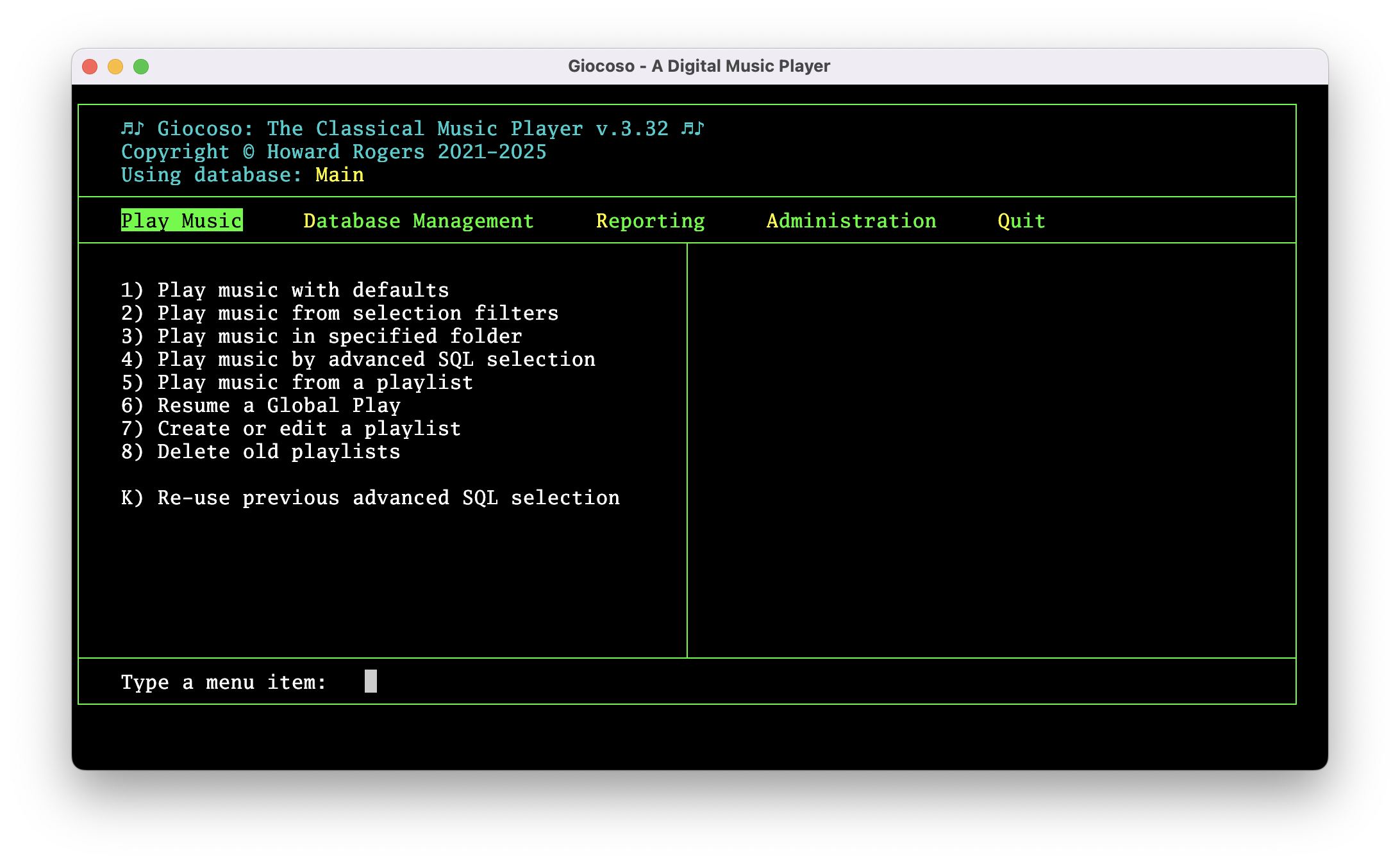
…but if I set the constants to this:
YELLOW=226 RED=9 BLUE=104 CYAN=130 GREEN=220 NORMAL=176 WHITE=128
…and then re-launch Giocoso, it will now appear like this:
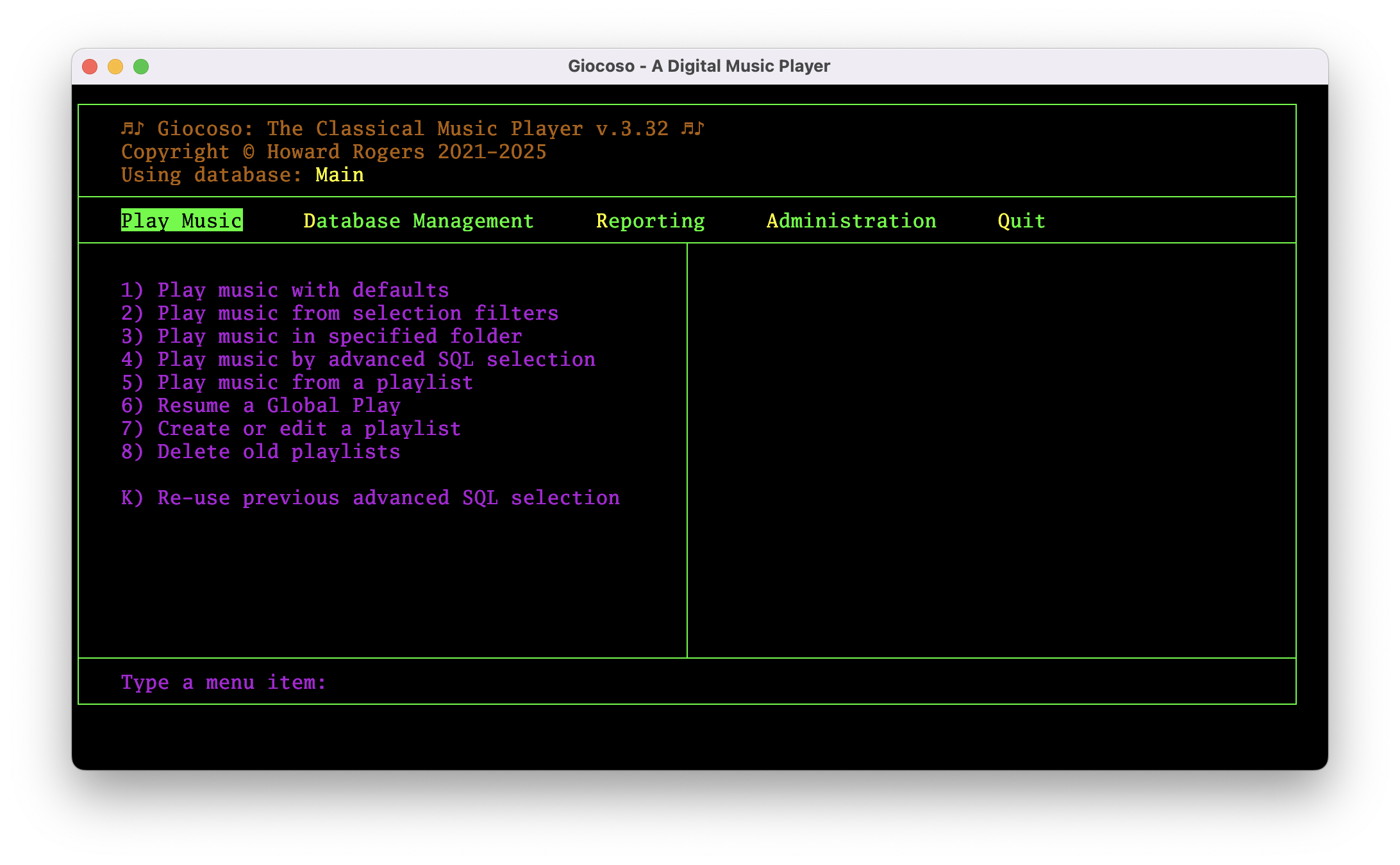
All sorts of other graphical nightmares are made by possible by fiddling the colour constants in this way, as you can no doubt imagine!
2.0 XTerm Colours
Giocoso tends to run inside an XTerm terminal: if you use the program launcher that the Giocoso installation procedure creates for you, it will contain a launch command such as:
/usr/bin/xterm -bg black -fg green -geometry 103x28 -fa 'Space Mono:style=Regular' -fs 12 -ti 340 -tn xterm-256color -e giocoso3.sh
…which is certainly pretty nasty, but basically says 'launch xterm at a certain size, using a certain font, and then run the giocoso3.sh shell script within it'. Rather crucially, however, it also contains a “bg” command, which sets the background terminal colour and an “fg” command, which sets the default foreground terminal colour. Note that not all implementations of xterm support these parameters, so you'll have to experiment! If your xterm does support setting foreground and background colours in this way, though, you can edit the launcher command to specify any of the possible foreground and background colours, by name. Available colours are:
- black
- blue
- green
- yellow
- cyan
- white
- magenta
- red
If you set -bg magenta -fg blue within the launcher command, therefore, you can end up with this sort of nightmare:
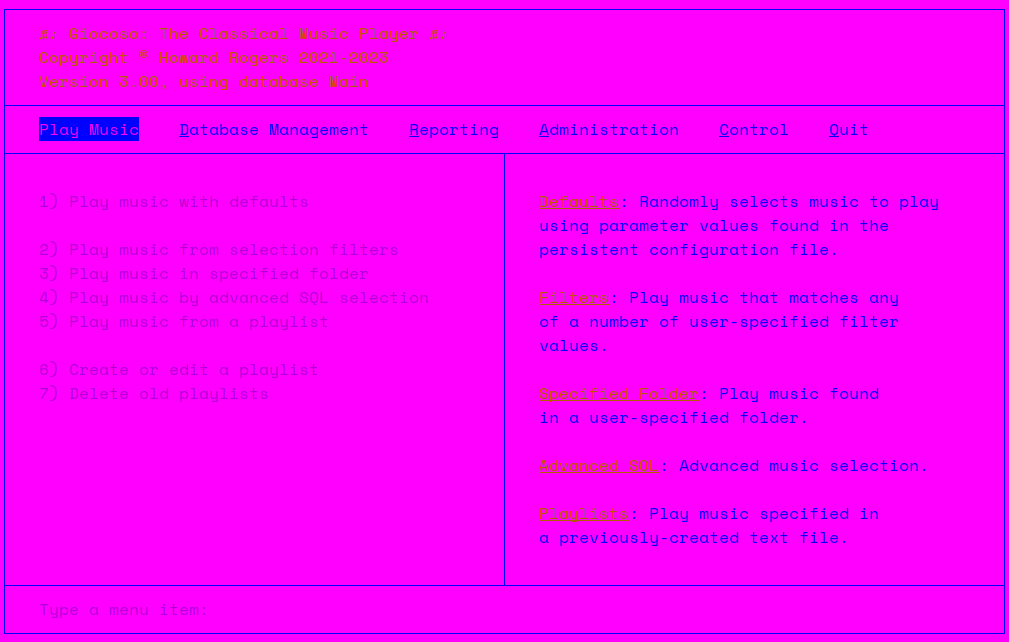
I'm not saying I'm recommending this approach, in case that wasn't obvious! I'm just saying that extensive control over Giocoso Version 3's appearance is possible, if you are prepared to fiddle enough with the launcher command and Giocoso's own colour constants. The interaction between them can be quite tricky to predict ahead of time, though, so extensive experimentation is probably required!
3.0 Dialog Colours
No matter how ghastly a colour scheme you've managed to cook up using the techniques mentioned in Sections 1 and 2 above, the moment you take a Giocoso option that invokes the display of a dialog box of some kind, the program's colours will immediately switch to those configured for use by the Dialog utility. For example, here's my weird choice of colours (in a vaguely sane terminal colour scheme!) from a couple of screenshots ago:
…but the second I take Option 2 on the Play Music menu, which triggers the display of a music selection filter form, I see this:
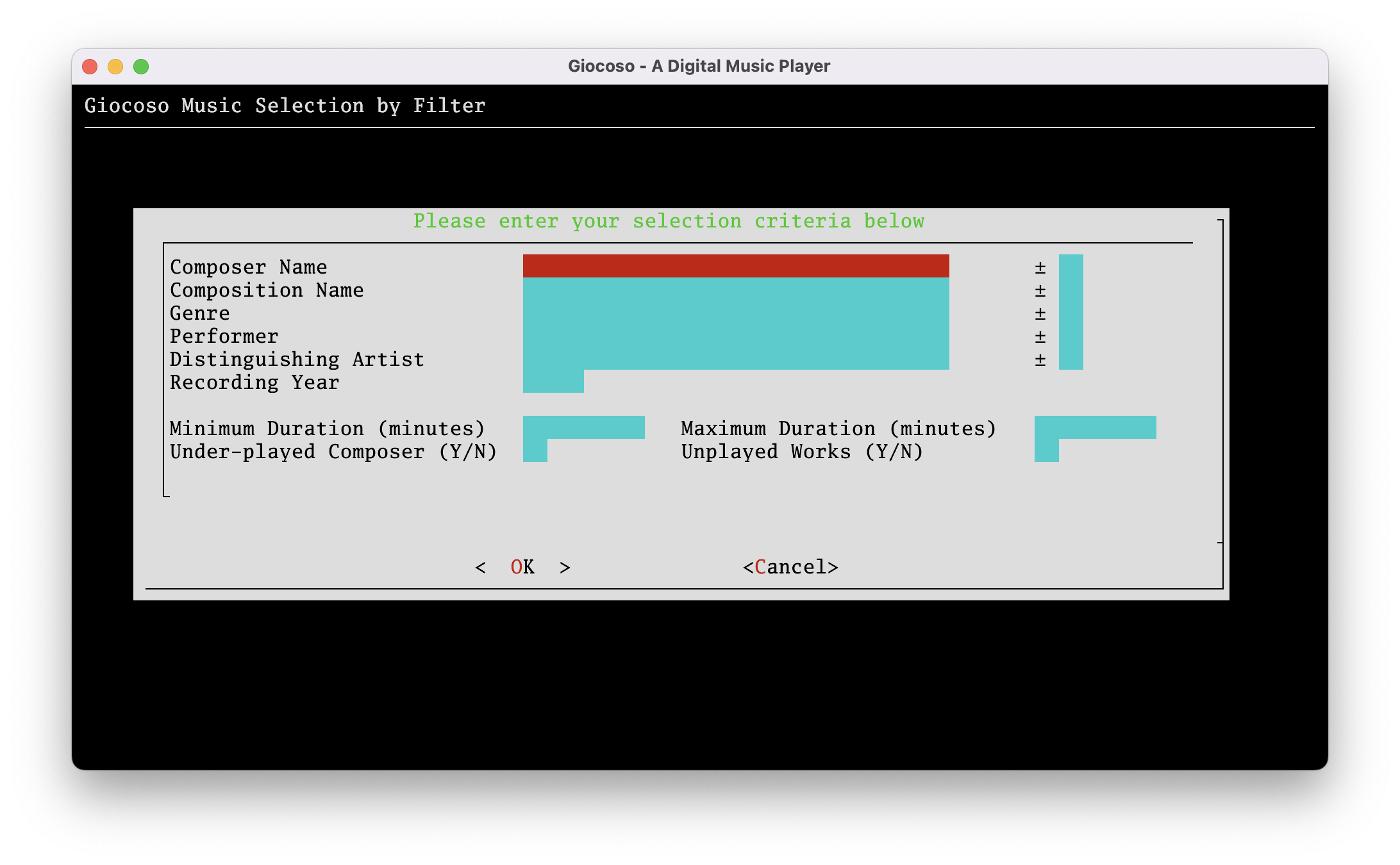
That black/white/grey/blue/red colour scheme is that belonging to the dialog utility and is immune from colour changes you may make to Giocoso or XTerm. In fact, it's controlled by its own, entirely independent, configuration file: $HOME/.local/share/giocoso3/txt/abgiodialog.conf. It's simply a text file and can thus be edited in any standard text editor. It contains a bazillion lines such as:
screen_color = (WHITE,BLACK,ON)
shadow_color = (BLACK,BLACK,ON)
dialog_color = (BLACK,WHITE,OFF)
title_color = (GREEN,WHITE,OFF)
border_color = (WHITE,WHITE,ON)
button_active_color = (WHITE,RED,ON)
button_inactive_color = dialog_color
button_key_active_color = button_active_color
button_key_inactive_color = (RED,WHITE,ON)
button_label_active_color = (WHITE,RED,ON)
button_label_inactive_color = (BLACK,WHITE,ON)
…and hopefully you can see where the red, green, white and black colours are being configured.
This is a pretty hard file to understand or edit intelligently, I'll warn you in advance: the key thing to spot is that each dialog display element is described with a foreground, background and highlight combo. Hence, the default colouration of all dialogs invoked by Giocoso (governed by the 'screen_color' parameter) is to have a black background, white foreground text, and the white will be bright-white, because highlighting has been set 'ON'. Armed with this little knowledge, therefore, it's possible to replace colour names and see what effect such replacement has on things. If you're going to fiddle with this, I'd strongly recommend only changing one colour/parameter at a time, though!
Available colour names for the dialog utility are: black, red, green, yellow, blue, magenta, cyan and white.
Thus, by merely editing the first of the dialog configuration options to read:
screen_color = (WHITE,YELLOW,ON)
…you can achieve this thing of beauty:
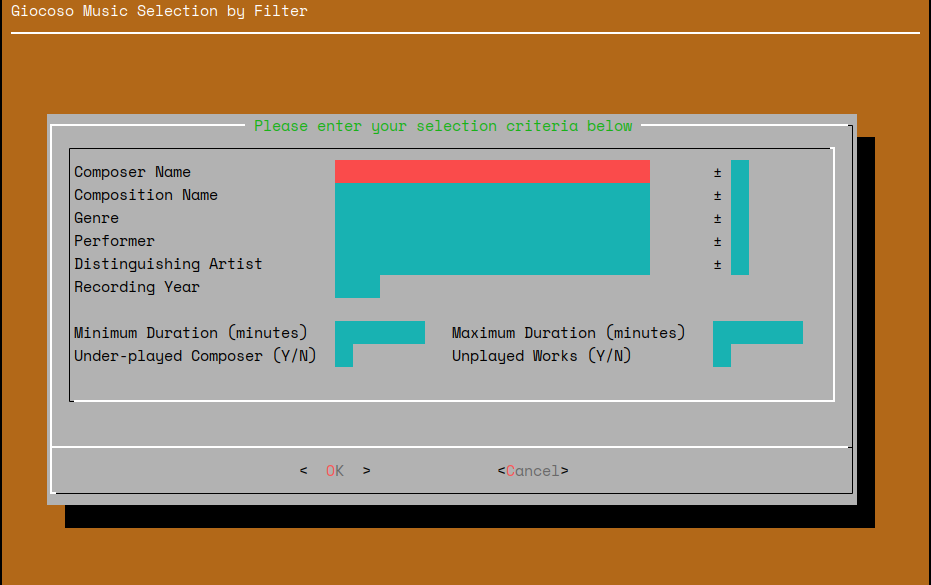
Again: I'm not recommending you should actually do this! I'd rather you spent your time listening to music instead, of course… but the capability to tailor these things is definitely there.